
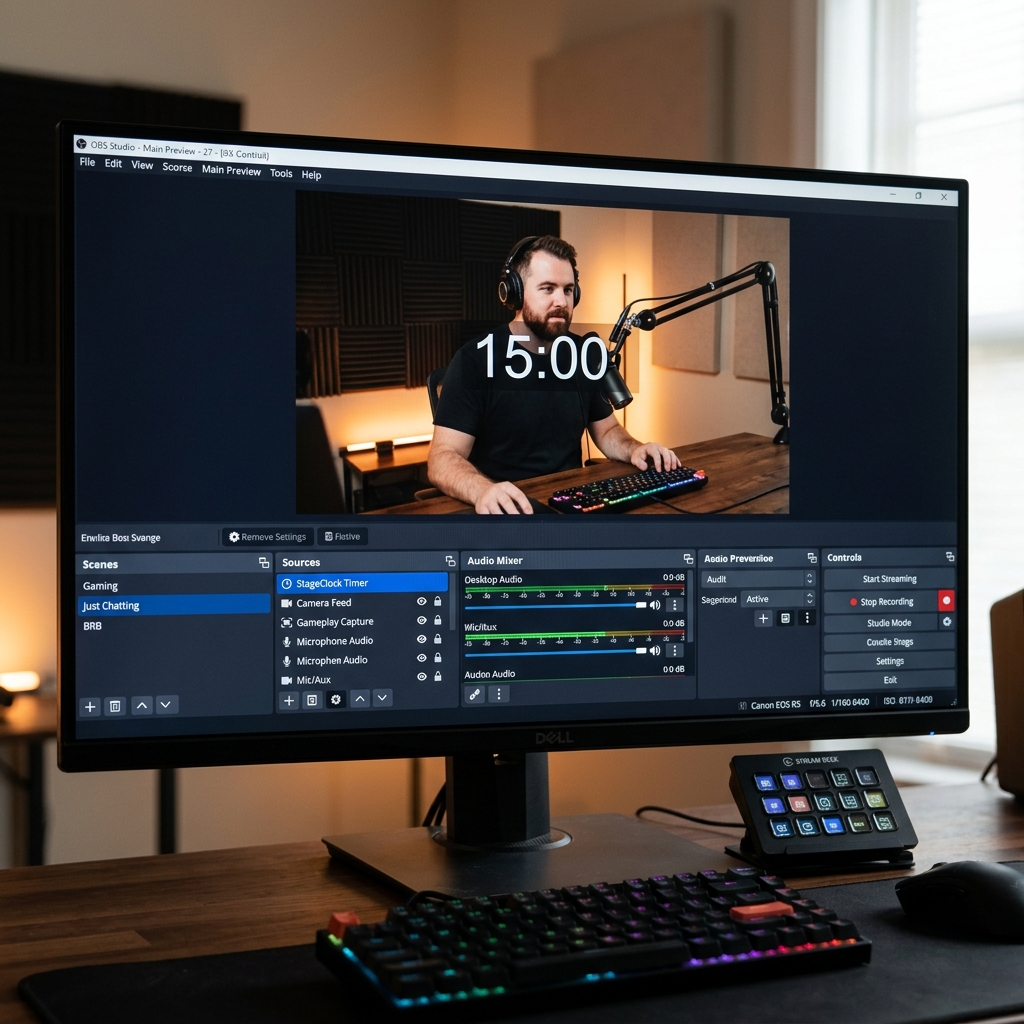
How to Add a Real-Time Clock & Countdown Timer Overlay to OBS Studio
Looking for an easy way to show a countdown timer or clock in OBS? Learn how to add a clean, web-based timer overlay to OBS Studio in under 60 seconds.
Table of Contents
If you host live streams on Twitch, YouTube, or Facebook Live using OBS Studio, adding a countdown timer or live clock overlay is essential. Whether you are running a "Starting Soon" screen, a break countdown, or pacing a live Q&A session, viewers need clear time visual cues.
However, traditional OBS plugins can break after software updates, and window capture solutions look pixelated and messy.
Here is the easiest, most reliable way to add a real-time countdown clock to OBS Studio without installing any third-party plugins.
Adding a browser source timer overlay gives your OBS scenes a polished, broadcast-quality look.
Step-by-Step: Adding a Timer Overlay to OBS
1. Create Your Timer on StageClock
Go to StageClock.live and set up your event countdown or live clock. Customize your initial duration (e.g., 5 minutes for your stream starting countdown).
2. Copy the Display Link
Once your timer is configured, copy the Display Link URL from your StageClock dashboard.
3. Add a Browser Source in OBS Studio
- Open OBS Studio and select the Scene where you want the timer to appear.
- In the Sources box at the bottom, click the
+button and choose Browser. - Name your source (e.g.,
"Stream Timer"). - Paste your StageClock Display Link URL into the URL field.
- Set Width to
1920and Height to1080for crisp high-definition resolution.
4. Enable Transparent Background
In your StageClock settings, toggle Transparent Background ON. OBS will automatically remove the dark container box, leaving only clean, modern timer digits floating smoothly over your video feed.
Why Web Browser Timers Outperform OBS Plugins
- Zero Plugin Crashes: Because it runs natively inside OBS's built-in web browser engine, updates to OBS Studio will never break your timer.
- Remote Control from Phone: You can start, pause, or reset your OBS clock from your mobile phone without ever minimizing your stream or game.
- Scene Switching Persistence: You can add the same Browser Source URL across multiple OBS scenes ("Just Chatting", "Intermission", "Be Right Back") and the clock stays in perfect sync.
Ready to enhance your stream visuals? Create your free OBS timer on StageClock today.