Make Your Stream Look Pro: Connecting StageClock to OBS
Running a stream on Twitch or YouTube? Here is how to add a professional countdown timer that you can control from your phone.
StageClock Team
2 min read
Table of Contents
If you’re a streamer, you probably use a "Starting Soon" screen. But is it just a static image? Or a basic timer that you have to manually reset every time?
StageClock lets you add a professional, synchronized timer to OBS in about 30 seconds. And the best part? You can control it from your phone while you’re getting your coffee.
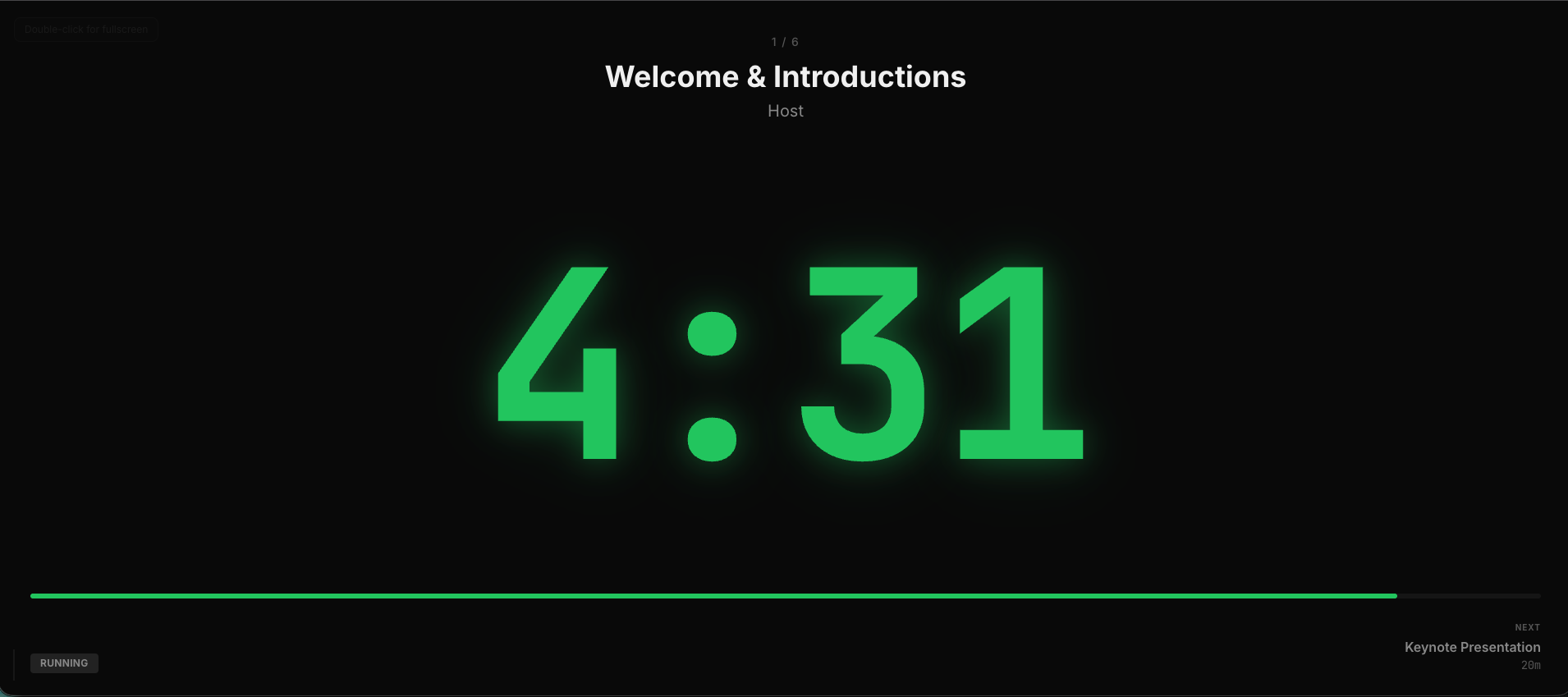
This is the exact view you can drop into OBS for a perfect overlay.
How to Do It (The 1-Minute Version)
- Get your link: Copy the "Display" URL from your StageClock event.
- Add to OBS: Add a new "Browser Source" in OBS and paste the link.
- Make it look good: In the OBS source settings, add a little bit of Custom CSS to make the background transparent:
body { background-color: rgba(0,0,0,0) !important; } - Control it: Open the StageClock control panel on your phone. Hit start, and watch the timer appear on your stream!
Why This is Better Than a Plugin
- Zero Lag: Because it's web-native, it uses almost zero CPU on your streaming PC.
- Remote Control: You don't have to Alt-Tab out of your game to pause the timer. Just tap your phone.
- Perfect Sync: If you're doing a co-stream, your partner can see the exact same timer on their end too.
It’s a small detail, but it’s the difference between a "hobby" stream and a professional production.
Upgrade your stream today. Connect StageClock to OBS.