Displaying Time, Date & Countdown Timers in OBS: Step-by-Step Guide
Need to display live time, timestamps, or date overlays in OBS Studio? Discover how to add custom timestamp overlays and stream timers effortlessly.
Table of Contents
Whether recording podcasts, streaming live events, or archiving video feeds for clients, having an accurate timestamp or live clock overlay in OBS Studio is essential.
Timestamps help video editors quickly locate specific moments in recordings, while live clocks reassure broadcast viewers that your stream is running live in real-time.
Here is how to set up professional timestamps and time overlays in OBS Studio without dealing with complex lua scripts or buggy local plugins.
Adding a clean timestamp overlay to your OBS broadcast keeps recordings organized and viewers informed.
Why Adding Timestamps to OBS Matters
- Easy Video Editing & Archiving: When recording multi-hour events or podcast sessions, timestamps on screen make editing and chapter creation significantly faster.
- Stream Authenticity: Live stream viewers love seeing live time and countdown overlays that verify the broadcast is taking place in real time.
- Multi-Camera Sync: If you record with multiple cameras or remote guest feeds, matching timestamps across screens ensures alignment.
How to Add Time & Timestamp Overlays in OBS Studio
Method 1: Web Browser Source (Recommended)
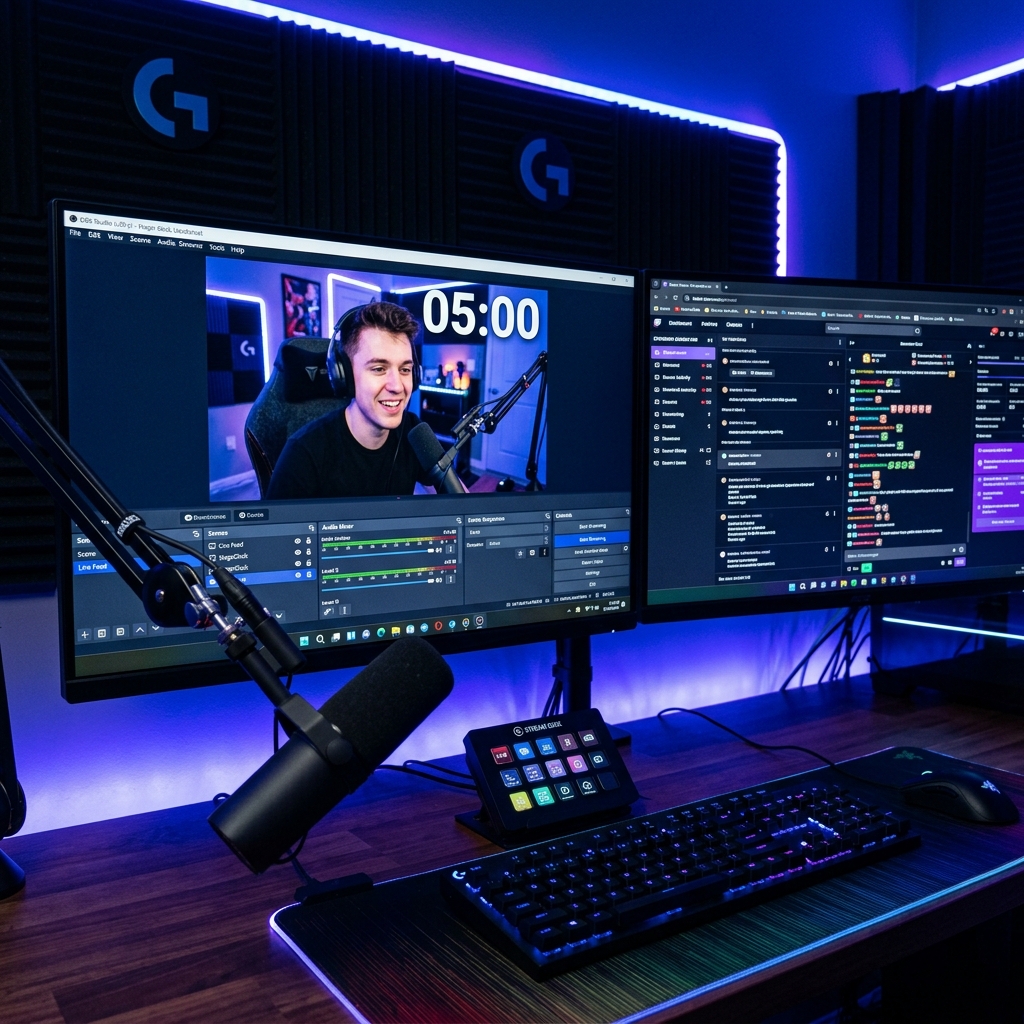
Instead of downloading outdated local OBS time plugins that require technical setup, use a web-based stage clock link.
- Open your dashboard on StageClock.live.
- Choose your preferred display mode: Current Time (Clock), Countdown Timer, or Segmented Elapsed Time.
- Copy your unique Display Link.
- In OBS, click
+under Sources -> Select Browser -> Paste your link.
Method 2: Customizing Fonts & Colors
Make your OBS time overlay blend naturally into your stream branding:
- Adjust font weight, size, and text color directly from StageClock settings.
- Enable transparent background mode so your timestamp floats seamlessly over camera feeds or screen captures.
Useful Use-Cases for Streamers & Producers
- Podcast Recording: Track exact elapsed recording time for show notes and time-coded chapters.
- 24/7 Live Streams: Display current UTC or local timezone clocks for international audiences.
- Breakout Timers: Show viewers when your intermission will conclude down to the exact second.
Upgrade your broadcast tools! Set up your OBS time overlay on StageClock for free.