One-Touch Control: Streamlining Stage Clock Workflow for Stream Deck Users
Learn how live streamers and broadcast operators integrate StageClock browser links into Elgato Stream Deck hotkeys and browser scenes.
Table of Contents
In high-pressure live environments—whether managing a corporate keynote or running a live stream—fumbling through open browser tabs to find your stage timer controls is risky.
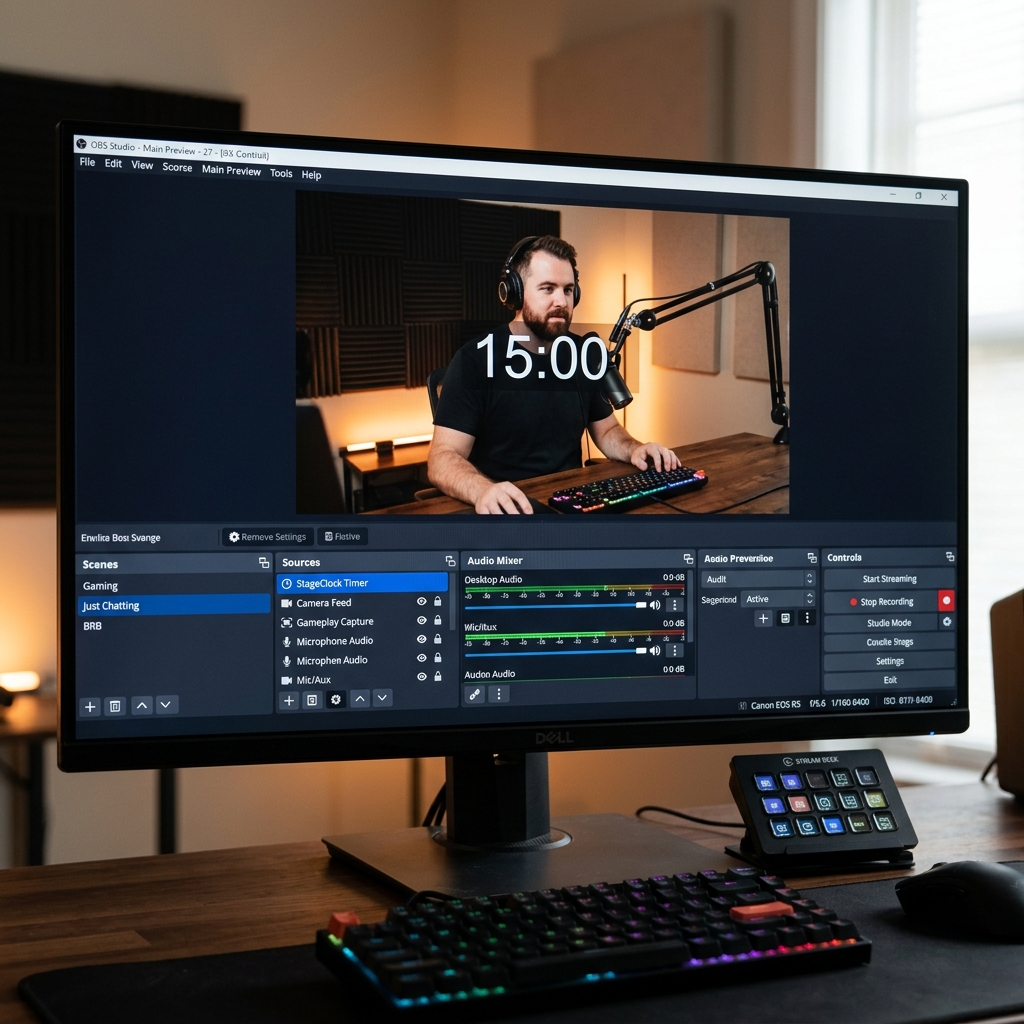
Using tactile Stream Deck hotkeys allows live producers to launch, switch, and manage browser-based stage timers smoothly during broadcasts.
Here is how live event producers and streamers integrate StageClock with their Elgato Stream Deck setup.
Tactile Stream Deck hotkeys give broadcast operators quick access to browser sources and stage timer displays.
1. Why Streamers & Producers Love Hotkey Shortcuts
When managing OBS, vMix, slide decks, and audio mixers simultaneously during a live broadcast, switching windows using a mouse takes time.
- Hotkey buttons on Elgato Stream Deck let operators trigger scene switches and launch StageClock display links instantly.
- Keeps your focus on your main broadcast preview.
2. Best Ways to Use Stream Deck with StageClock
A. Quick-Launch Control Links
Map a Stream Deck key to open your StageClock Control Link in a dedicated secondary browser window. One tap brings your timer controls to the front of your screen.
B. Scene Switching Integration (OBS & vMix)
Assign Stream Deck buttons to switch to scenes that contain your StageClock Browser Overlay (e.g., "Starting Soon", "Intermission", "Speaker Spotlight").
C. Preset Multi-Timer Bookmarks
If your event has multiple rooms or breakout tracks, map Stream Deck keys to quickly open the Display Links for Room A, Room B, or Main Stage.
3. Simple Setup Guide
- In the Elgato Stream Deck software, drag a Website or System: Open action onto an empty key.
- Paste your StageClock Control or Display URL.
- Label the key (e.g., "Stage Clock").
Streamline your broadcast control booth! Start using StageClock for easy web-based show timing.