Advanced Production: Integrating StageClock with vMix for Broadcasters
Professional broadcasting requires precision. Learn how to use StageClock as a high-performance browser input in vMix for your next big live event.
Table of Contents
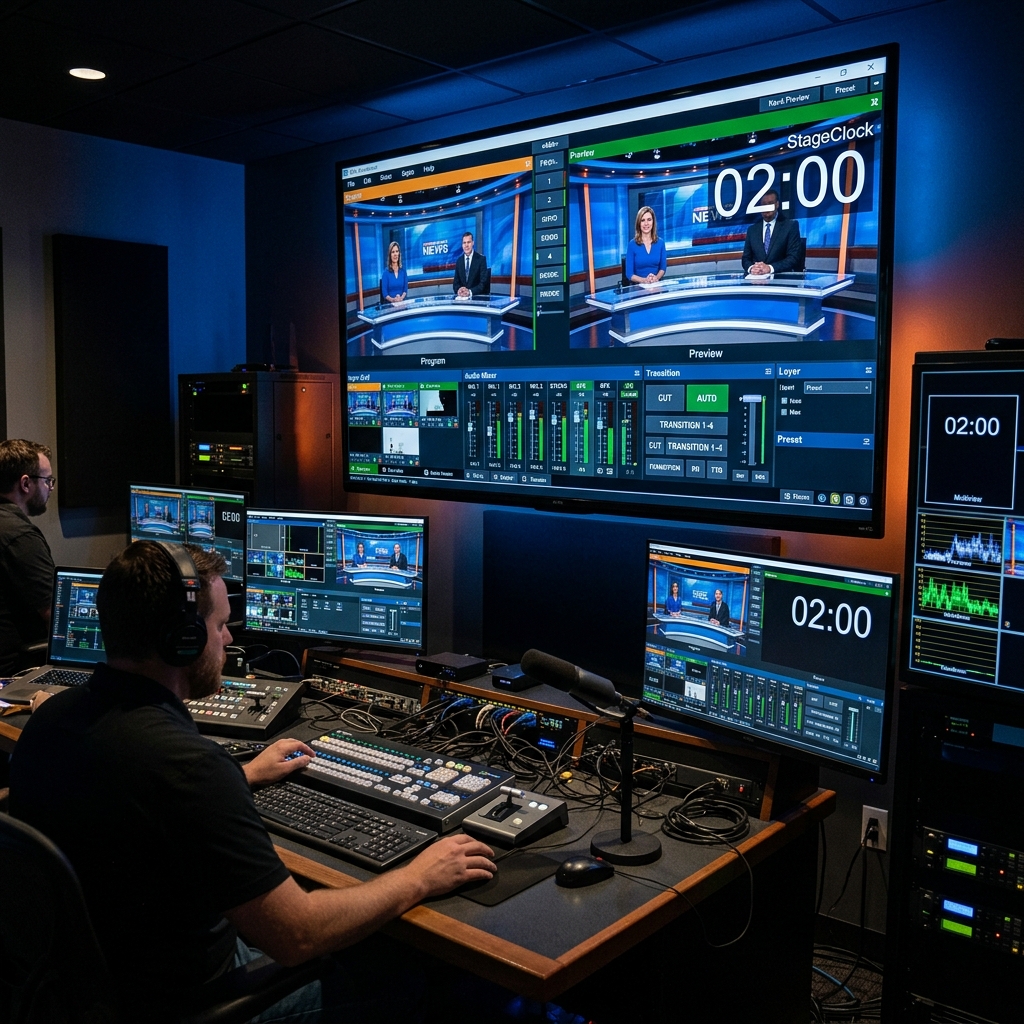
For professional production companies using vMix, a reliable stage timer is non-negotiable. Whether you’re running a corporate summit or a live sports broadcast, you need a timer that can be controlled remotely and looks flawless on the air.
StageClock is designed to work natively with vMix’s Web Browser input, providing a low-latency, high-performance timing solution.
vMix recognizes the alpha channel natively, allowing for a perfect overlay.
The vMix Advantage
Using a cloud-synced timer like StageClock in vMix gives your production team several advantages:
- Zero CPU Overhead: Unlike NDI timers, StageClock runs in its own process.
- WebSocket Sync: The delay is near-zero, perfect for "count to live" scenarios.
- Mobile Triggers: Your floor manager can trigger the timer from their phone while on the stage floor.
Setting Up StageClock in vMix
1. Add Web Browser Input
In vMix, click Add Input and select Web Browser.
- URL: Paste your StageClock Display Link.
- Browser: We recommend using the "CEF" (Chrome) engine for best performance.
2. Manage Alpha Channel (Transparency)
StageClock supports native transparency. In your Control Panel, click on Views and select vMix Overlay. This link automatically enables "Transparent Mode" (?transparent=true), which vMix will recognize as an alpha channel. This allows you to overlay the timer onto any camera or video input without any chroma keying required.
3. Layering the Timer
Place your StageClock input on an Overlay channel (e.g., Overlay 1 or 2). This ensures that the timer stays visible regardless of what you are cutting to in your Program view.
4. Dynamic Control
Because StageClock is a real-time web app, any changes made to the timer in the Control Panel (backstage) will update instantly in vMix. If your director says "Give the speaker 2 more minutes," you can add it on the fly without ever touching the vMix interface.
Use Case: Multi-Input Management
If you have multiple rooms being managed in a single vMix project, you can add multiple StageClock browser inputs, each linked to a different event room. This allows you to monitor and broadcast the timing for multiple tracks from one central PC.
Ready for a professional broadcast? Integrate StageClock with vMix today.