
Boosting Engagement: Why Every High-Converting Webinar Needs a Pre-Show Timer
A clean pre-show countdown reduces attendee drop-off and sets a professional tone before your virtual webinar begins. Learn how to set it up.
Table of Contents
The first 5 minutes of a live webinar determine whether attendees stay or drop off. When attendees join a webinar to find a blank screen, a static slide, or awkward silence, many assume the link is broken and close the window.
A live pre-show countdown timer signals to viewers that the event is live, active, and about to start on schedule.
Here is how online creators and sales teams use StageClock as a native browser overlay to boost webinar attendance and conversions.
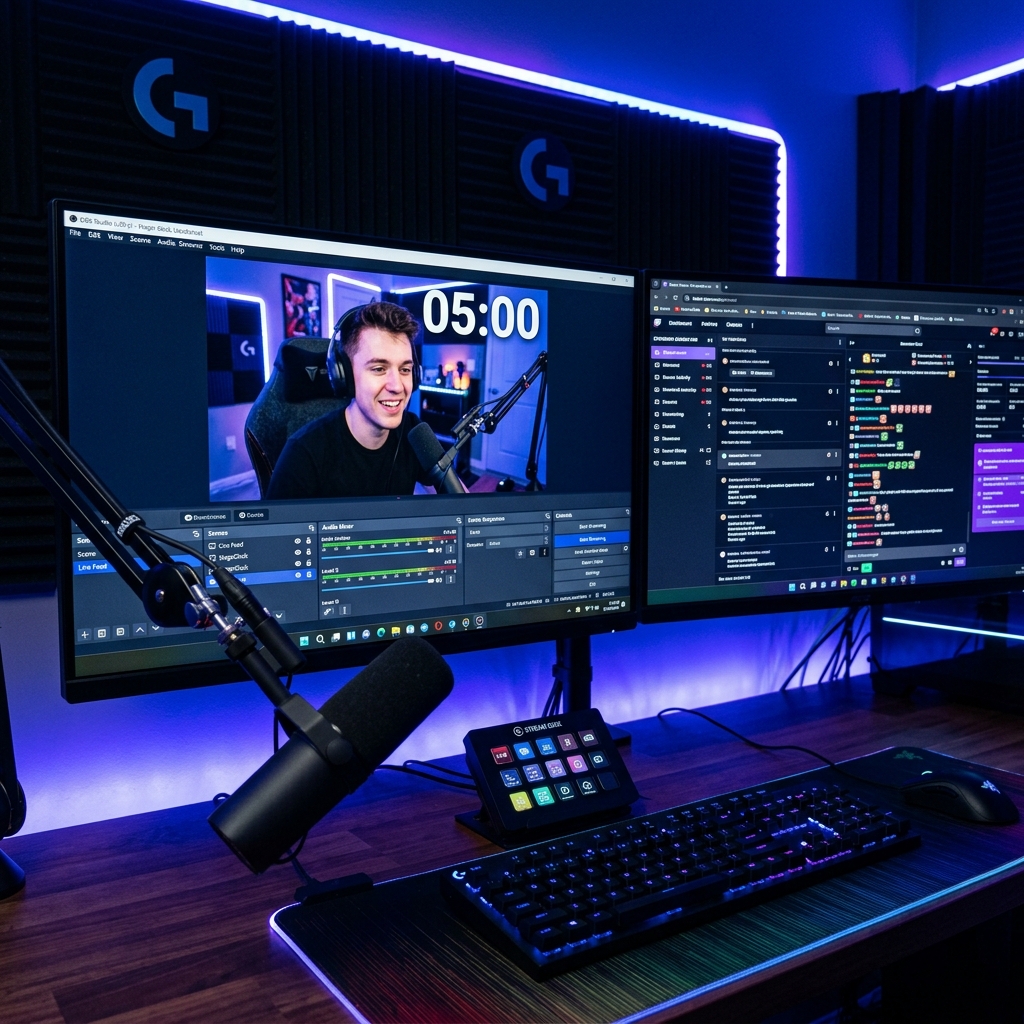
Adding a sleek countdown timer to your pre-show video feed reassures attendees and builds anticipation before your webinar begins.
1. Eliminate Viewer Drop-Off During Pre-Show
When people join your webinar 5 to 10 minutes early, they want confirmation that they are in the right room.
- Adding a StageClock Browser Source overlay in OBS, vMix, or Zoom gives incoming attendees a clear visual indication: "Starting in 04:30".
- It reassures attendees, encourages them to grab a notepad or coffee, and keeps them tuned into your stream.
2. Transparent Backgrounds for Seamless Brand Integration
Clunky timer applications often come with dark square backgrounds that block your pre-show graphics or intro slides.
- StageClock offers a Transparent Background mode out of the box.
- Simply paste your StageClock URL as a Browser Source in your streaming tool, and the countdown text will float cleanly over your background graphic or slide deck.
3. Synchronizing Co-Hosts and Presenters Backstage
During live webinars, co-hosts and guest speakers need to know exactly when the stream goes live so they can prepare.
- Instead of shouting into a backchannel chat, hosts can view the shared StageClock dashboard on their secondary screens or mobile devices.
- Everyone knows when the clock hits zero, creating a smooth, confident broadcast entry.
4. Structuring Webinar Agenda Segments
High-converting webinars rely on disciplined pacing—for instance: 5-minute intro, 30-minute main lesson, 15-minute product offer, and 10-minute Q&A.
- StageClock’s Segmented Timing feature keeps the host on track throughout every phase of the deck.
- The host sees subtle visual alerts when it is time to shift from pitch to Q&A, avoiding rushed conclusions.
Ready to level up your virtual presentations? Try StageClock for free and transform your webinar experience.