Level Up Your Stream: How StageClock Keeps Your Live Production Professional
Whether you're hosting a podcast, a gaming tournament, or a live talk show, timing is everything. Discover how to integrate StageClock into your streaming workflow.
Table of Contents
Live streaming has evolved from "just a hobby" into a high-stakes production. Whether you're a YouTuber hosting a live charity event, a gamer running a tournament, or a professional podcaster, the difference between an amateur and a pro is often just pacing.
If your "Just Chatting" intro goes on for 30 minutes, you lose viewers. If your guest interview ends abruptly, it feels awkward.
Here is how content creators are using StageClock to bring broadcast-level precision to their home studios.
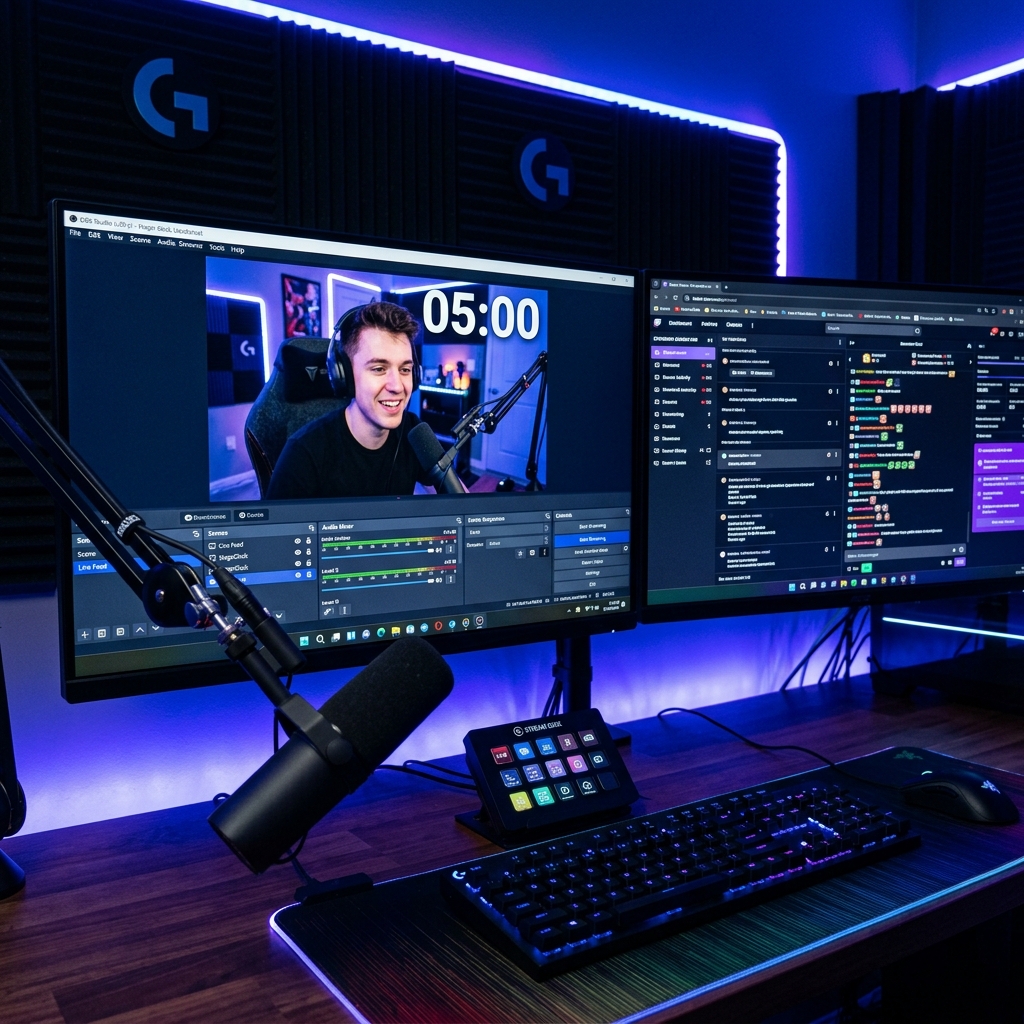
Integration with OBS and vMix allows you to keep your timing front and center without cluttering your physical desk.
1. Native OBS and vMix Integration
The most powerful feature for streamers is the Browser Source.
- You don't need to "window capture" or crop a messy website.
- In OBS, simply add a new Browser Source, paste your StageClock Display Link, and you have a clean, high-contrast timer that you can place anywhere in your scene.
- Because it has a transparent background option, it blends seamlessly with your stream overlays.
2. Managing Show Segments
A great live show has a rhythm.
- Example Flow: 5 min Intro -> 15 min Gameplay -> 10 min Q&A -> 5 min Outro.
- With StageClock’s Segments feature, you can program these blocks in advance.
- As you finish your intro, the timer automatically moves to the next segment, giving you a visual cue to change your camera angle or topic.
3. Remote Guest Coordination
If you are hosting a podcast with a remote guest (on Zoom, Discord, or Riverside), they often have no idea how much time is left.
- The Solution: Send your guest the Display Link.
- They can open it on their second monitor or phone. Now, both the host and the guest are looking at the exact same second, making transitions and "wrap-ups" feel natural instead of forced.
4. The "Off-Camera" Confidence Monitor
Don't want the timer visible to your audience? No problem.
- Many streamers use an old smartphone or a small 7-inch monitor mounted right above their camera.
- This acts as a Confidence Monitor. You can see your time remaining without ever taking your eyes off the lens, maintaining that critical "eye contact" with your community.
5. Low Latency for Fast-Paced Events
In a live gaming tournament, a 5-second delay in your timer is a disaster.
- StageClock uses high-performance WebSockets to ensure that when you hit "Start" on your phone, the timer on your stream updates in milliseconds. It’s built for the speed of live internet.
Ready to level up your production? Add StageClock to your OBS today and never miss a beat.